Bibliographer
Compiling and producing a bibliography is an central part in writing academic texts. One can derive an overview of a text solely by glimpsing its bibliography. Being able to reference work in a standard fashion is usually required for most publications. However, the practice of manually writing a bibliography may at times be quite laborious. Because bibliographic standards (citation styles) vary depending on disciplines, and because various formats can change depending on the type of work that is referenced, it is easy to make mistakes and omit to include information here and there. Yet since bibliographic citation styles each have clear rules, it is rather trivial to implement bibliographic reading and writing systems using computers. Such systems certainly exists and are used to (1) gather bibliographic information into a database and (2) to output information in text format following whichever bibliographic standard it is instructed to – in short, they are capable of reading and writing such peculiar type of text.
Goals
This lessons introduces how to use software to produce bibliographies for texts written in markdown and using pandoc as document converter. Zotero is the program which will be demonstrated, yet other programs having the functionality of producing BibTeX formatted files (.bib) may also be used in conjunction with pandoc.1
In short, the objectives of this lesson are:
- Acquire basic understanding on how to use Zotero in gathering bibliographical information.
- Acquire basic understanding on how to use Zotero to manage research references.
- Learn how to compile and export a BibTeX bibliography (and possibly other formats) using Zotero.
- Learn how to reference work within markdown linked to information found in an exported BibTeX file (.bib) using pandoc.
To install Zotero, please follow this link and install the Standalone version and related browser extension.
How

Zotero brands itself as a “research organiser”, meaning that it can collect and arrange academic research information under a simple interface. As you can see from the above image, in a nutshell, Zotero is a list of works (books, blog posts, chapters, journal articles, etc.) augmented with meta-data (notes, tags, relations, etc.). Each work has, of course, a formal description adequate to the type of work it represents. For example, a blog post has an URL while a journal article may have a volume identifier. The goal here is not to delve into the details of each formats relating to each types of work that can be represented in Zotero, but rather to make use of it and see how it proceeds in formalising types of work.
If it is the first time you ever used Zotero, your works list should be empty. Here are two common ways to populate your database:
1. Add an Item by Identifier

Identifiers such as ISBN and DOI can be utilised to add items to Zotero using the special “add” button on the top menu bar. Each of ISBN and DOI are unique identifiers that refer to a specific work. Such identifiers are common and can be found on websites as as Amazon or a library website or simply directly printed in a book.
2. Add an Item with browser extension
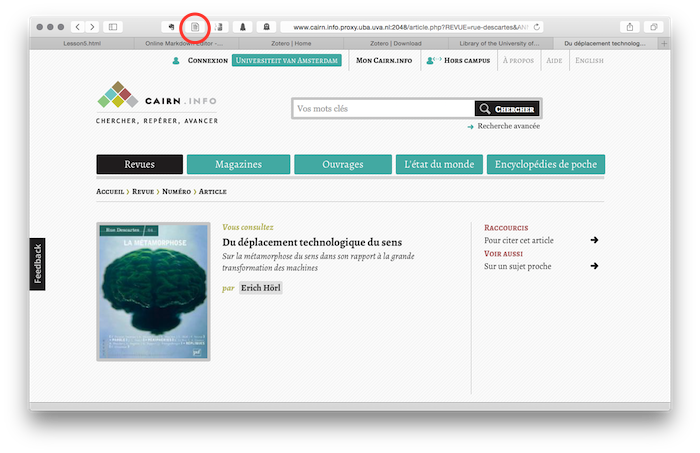
When you installed the standalone version of Zotero, an extension (plug-in) for your web browser was also available to install. Using this plug-in on your browser helps you collect bibliographical items on the web. Depending on your type of browser (Safari, Chrome, Firefox) you should see a small Zotero icon near your address bar. When an web page presents an bibliographical item that can be added to Zotero, the icon will change aspect (or literately appear) signifying that when clicked, the item will automatically be inserted in Zotero’s database. This comes very handy when browsing journals’ websites for example. Adding an article to Zotero becomes very easy (as exemplified in the image above).
You should now be able to populate your Zotero database in a click.
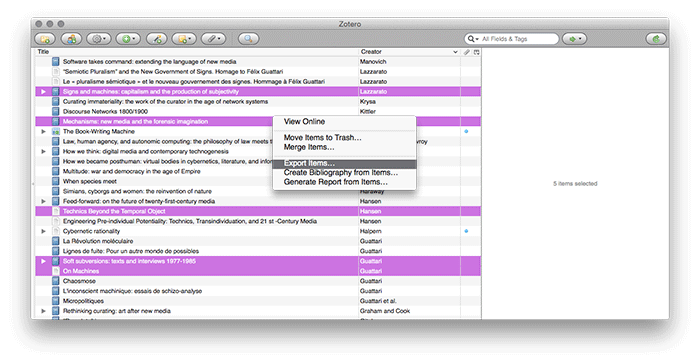
Compiling a bibliography and / or exporting Zotero items it is as easy. Zotero let’s you select individual items that can be exported in various formats (such as BibTeX) or even compiled into a formatted bibliography.
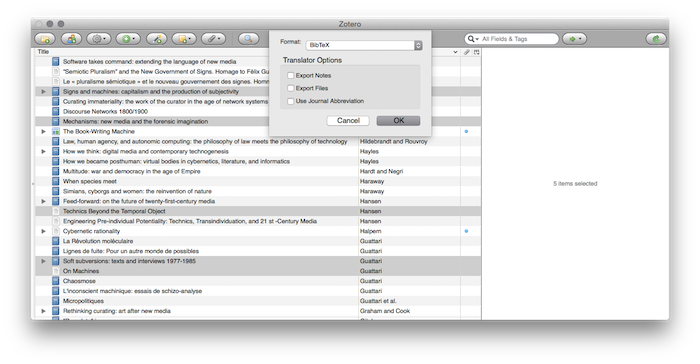
For the purpose of this lesson, exporting selected Zotero items in the BibTeX format allows for referencing work from a markdown text using pandoc. This should produce a .bib file with all the information needed to produce a bibliography. The content of the file should look like the following.
@book{lazzarato_signs_2014,
    address = {Los Angeles, CA},
    series = {Semiotext(e) foreign agents series},
    title = {Signs and machines: capitalism and the production of subjectivity},
    isbn = {1584351306},
    shorttitle = {Signs and machines},
    publisher = {Semiotext(e)},
    author = {Lazzarato, M.},
    collaborator = {Jordan, Joshua David},
    year = {2014},
    keywords = {Capitalism, Philosophy, Subjectivity}
}

@book{kirschenbaum_mechanisms_2012,
    address = {Cambridge, Mass.; London},
    title = {Mechanisms: new media and the forensic imagination},
    isbn = {9780262517409  026251740X},
    shorttitle = {Mechanisms},
    language = {English},
    publisher = {MIT Press},
    author = {Kirschenbaum, Matthew G.},
    year = {2012},
    keywords = {wwwriting}
}

@article{hansen_technics_2012,
    title = {Technics {Beyond} the {Temporal} {Object}},
    volume = {77},
    doi = {10.3898/NEWF.77.03.2012},
    number = {1},
    journal = {New Formations},
    author = {Hansen, Mark B. N.},
    month = dec,
    year = {2012},
    keywords = {Computation, Erlebnis, Husserl, Microtemporal Experience, Sensibility, Technical Contamination, Temporal Object, Time-Consciousness},
    pages = {44--62}
}

@book{guattari_soft_2009,
    address = {Los Angeles : Cambridge, Mass},
    series = {Semiotext(e) foreign agents series},
    title = {Soft subversions: texts and interviews 1977-1985},
    isbn = {9781584350736},
    shorttitle = {Soft subversions},
    publisher = {Semiotext(e) ; Distributed by the MIT Press},
    author = {Guattari, Félix},
    collaborator = {Lotringer, Sylvère},
    year = {2009},
    keywords = {20th century, Criticism, History, Psychoanalysis and literature, Psychological aspects}
}

@article{guattari_machines_1995,
    series = {Journal of {Philosophy} and the {Visual} {Arts}},
    title = {On {Machines}},
    number = {6},
    journal = {Complexity: architecture, art, philosophy},
    author = {Guattari, Félix},
    editor = {Benjamin, Andrew},
    year = {1995},
    pages = {96}
}
The BibTeX is yet another text-based human-readable format that accounts for all information needed in producing a proper bibliography. As you can see, the information is a kind of median representation of works, meaning that it is not yet formatted according to particular standard citation style2. Instead it arranges and orders each work’s information in a standard structure with tags that can easily be parsed by a citation processor such as the one included in pandoc.
Citing with pandoc is straight forward.
Pandoc must first be instructed to link the generated .bib file with the specific markdown input file when creating an output document. This is done with a single parameter on the CLI. For example, the above BibTeX has been added to this site’s wwwrite.bib and used to generated this page usign the following command:
pandoc -s Lesson5.md --template=style/template.html5 -c style/html5.css --bibliography=wwwrite.bib -o Lesson5.htmlThe important argument here being
--bibliography=wwwrite.bibNow let’s cite a source from the BibTeX.
For example, let’s cite the work of Guattari who says “Since then, I have tried to nurture this machinic object, although I admit it is not something I control, rather it is a kind of core to which I am repeatedly led back.”[@guattari_machines_1995]
In markdown, the citation is written:
"Since then, I have tried to nurture this machinic object, although I admit it is not something I control, rather it is a kind of core to which I am repeatedly led back."[@guattari_machines_1995]Easy. To reference a work “in-text”, one only has to specify an item’s entry identifier form the .bib file (here “guattari_machines_1995”) and prefix it with a ‘@’ symbol and bracketed with both opening ‘[’ and closing ’]’. Not only pandoc will “signposts” the citation in-text (at the specific text location) but also formats and appends the citation’s reference at the end of the output file (see the References section of this document).
You can also reference multiple authors such as the ones listed above [@lazzarato_signs_2014; @kirschenbaum_mechanisms_2012; @hansen_technics_2012; @guattari_soft_2009] and look up their referenced works below.
[@lazzarato_signs_2014; @kirschenbaum_mechanisms_2012; @hansen_technics_2012; @guattari_soft_2009]Extra
Citation Section of Pandoc’s User Guide